Three different things called HDR
"HDR" on iPhone can mean three separate things. They happen at different moments, and turning one off does not turn off the others.
| What | What it does | When it happens |
|---|---|---|
| HDR capture: Smart HDR, Deep Fusion, Photonic Engine, Night mode | Apple says the camera "takes several photos in rapid succession at different exposures and blends them together to bring more highlight and shadow detail to your photos." Apple engineers describe processed HEIC and JPEG photos as made by fusing multiple capture frames using Smart HDR, Deep Fusion or Night mode. | When you take the photo |
| HDR display | Since 2020, Apple has stored extra data with many iPhone photos, a gain map, that lets an HDR screen reconstruct an HDR version from the standard image. Apple describes the gain map as an 8-bit, single-channel luminance map stored with the image. A display without HDR capability shows the standard (SDR) version. | When you view the photo |
| Local tone mapping | Gives each region of the image its own tone curve. In Apple's example, it brings up darker regions and brings down brighter areas to suit a standard dynamic range display. | When the image is developed from sensor data |
The sections below take each one in turn: what Apple lets you switch off, on which models, and what stays on.
How to turn off Smart HDR
Apple documents a manual HDR switch only on some models. In the iPhone User Guide for iOS 27, these steps apply to iPhone 11 models, iPhone SE (2nd generation) and iPhone 12:
- Open Settings, tap Camera, then turn off Smart HDR.
- Open Camera, then tap HDR on the camera screen to turn it off or on.
The iOS 18 edition of the same Apple page also lists iPhone XS and iPhone XR.
On every other model, Apple says iPhone "automatically uses HDR when it's most effective" and documents no way to turn it off. If your iPhone is not in the list above, Apple's Camera app gives you no documented switch for HDR capture.
HDR video is a separate setting. On supported models, iPhone records video in Dolby Vision HDR. To turn that off, go to Settings > Camera > Record Video, then turn off HDR Video or HDR (the name depends on your model). It applies to video recording, not to photos.
Deep Fusion and Photonic Engine
Apple announced Deep Fusion with iPhone 11 in 2019 as "a new image processing system enabled by the Neural Engine of A13 Bionic" that "uses advanced machine learning to do pixel-by-pixel processing of photos, optimizing for texture, details and noise in every part of the photo."
When it introduced iPhone 14 and iPhone 14 Plus in 2022, Apple described Photonic Engine as an enhanced image pipeline that applies "the computational benefits of Deep Fusion earlier in the imaging process." Apple says it improves mid- to low-light photos across all cameras.
Apple's camera settings documentation describes no switch for either one. Turning on Apple ProRAW does not avoid them: Apple says ProRAW photos can be captured "when also using the Smart HDR, Deep Fusion, or Night mode features," and its developer documentation says ProRAW applies many of the multi-image fusion techniques.
What Prioritize Faster Shooting does
Prioritize Faster Shooting is on by default. Apple says it modifies how images are processed so you can capture more photos when you rapidly tap the Shutter button. To turn it off, go to Settings > Camera, then turn off Prioritize Faster Shooting.
Apple does not describe this setting as an HDR switch and does not say that turning it off, or on, stops frame merging. Treat it as a setting for rapid shooting, not a way to turn off processing.
Night mode is a separate case. On supported models, Apple says Night mode turns on automatically in low light, and you can tap the Night mode button in Camera to turn it off for your shot.
HDR display and local tone mapping
HDR display happens when you look at a photo, not when you take it. In its developer session on HDR images, Apple explains that the Photos app shows the full dynamic range of gain map photos on an HDR display, and that iPhone 14 can show HDR highlights up to 8 times brighter than reference white.
We did not find a Photos setting for HDR display documented in Apple's iPhone User Guide as of October 2026, so this page does not give a menu path for it.
Local tone mapping is a development step. In its ProRAW session, Apple says "the local tone map allows for each region of the image to have its own optimized tone curve," bringing up darker regions and bringing down brighter areas for a standard dynamic range display.
Apple's Camera app has no documented setting for it. Apps that develop RAW files with Apple's Core Image RAW filter can set the amount when the file supports it, and for ProRAW Apple says the strength can be set anywhere from zero to one. With a RAW file, the app that develops it decides how much local tone mapping to apply, if any.
Turn off iPhone photo processing: what each setting changes
These are the camera settings Apple documents that change how a photo is processed or how it looks. The last column says what Apple's documentation supports about frame merging.
| Setting | Where | Models, per Apple | What Apple says it does | Frame merging |
|---|---|---|---|---|
| Smart HDR | Settings > Camera, then HDR on the camera screen | iPhone 11 models, iPhone SE (2nd generation), iPhone 12 | Lets you control HDR manually instead of automatically | Lets you turn HDR off for a shot |
| Night mode | Night mode button in Camera | Supported models | Turns on automatically in low light to brighten photos and capture more detail | Lets you turn Night mode off for a shot |
| Prioritize Faster Shooting | Settings > Camera | No model limit stated | Modifies processing so you can take more photos when tapping the Shutter button rapidly | No effect documented |
| Photographic Styles | Settings > Camera > Photographic Styles, then Use Standard | Supported models | Adjusts specific colors in different parts of the photo for a customized look | No effect documented |
| Scene Detection | Settings > Camera | iPhone 12 models | Identifies what you are photographing and applies a tailored look | No effect documented |
| Lens Correction | Settings > Camera | Supported models | Adjusts front camera and Ultra Wide photos for more natural-looking results | No effect documented |
| Apple ProRAW | Settings > Camera > Formats | iPhone 12 Pro and later Pro models | Combines the information of a standard RAW format with iPhone image processing | Does not avoid it; ProRAW works with Smart HDR, Deep Fusion and Night mode |
| HDR Video | Settings > Camera > Record Video | Supported models | Turns off Dolby Vision HDR video recording | Video only |
None of these settings is documented as turning off Deep Fusion or Photonic Engine. On models without the Smart HDR switch, Apple documents no way to take a photo in its Camera app without multi-frame processing.
Avoid merging with a single RAW frame
A standard Bayer RAW photo is different from Apple ProRAW. Apple's developer documentation says shooting in standard RAW formats "bypasses the advanced processing that the image-capture pipeline provides." In a WWDC26 lab, Apple engineers explained that Bayer RAW stores the sensor's Bayer data directly, while ProRAW goes through a demosaic and a Photonic Engine merge of multiple frames.
Apple's iPhone User Guide describes RAW capture in the Camera app only as Apple ProRAW. Bayer RAW comes from third-party camera apps, which can request it through Apple's capture framework. Our guide to shooting RAW on iPhone compares the two formats in more detail.
What you trade:
- What merging adds. Apple says HDR blending brings more highlight and shadow detail, and that Photonic Engine improves mid- to low-light photos. A single frame gets neither.
- Automatic lens switching. Apple says Bayer RAW is supported only on single cameras, such as the wide and telephoto cameras, while ProRAW also works on the multi-camera setups that switch lenses as you zoom.
- Development is your choice. A RAW file has to be developed. The app or editor you use decides white balance, the tone curve, and how much noise reduction and sharpening to apply.
- Exposure and focus carry more weight. One frame means one exposure: the exposure and focus you choose are the only ones in the file. Our guide to manual focus on iPhone covers focus.
Seenlight Bare Frame, coming soon
Seenlight is a manual RAW camera app for iPhone, coming soon to the App Store for iOS 18 or later. Its Seenlight Bare Frame mode will capture one Bayer RAW frame without Smart HDR, Deep Fusion or frame merging, and develop it neutrally, for natural-looking photos with zero processing.
Zero processing describes Bare capture only. Bare Frame's neutral development will still demosaic the RAW data, set white balance, apply lens correction where supported and use a global tone curve rather than local tone mapping. Its default development includes some detail and color noise reduction, and you can add an optional look. Bayer RAW works only on lenses that support it. HEIC and supported PRORAW modes will use Apple's processing.
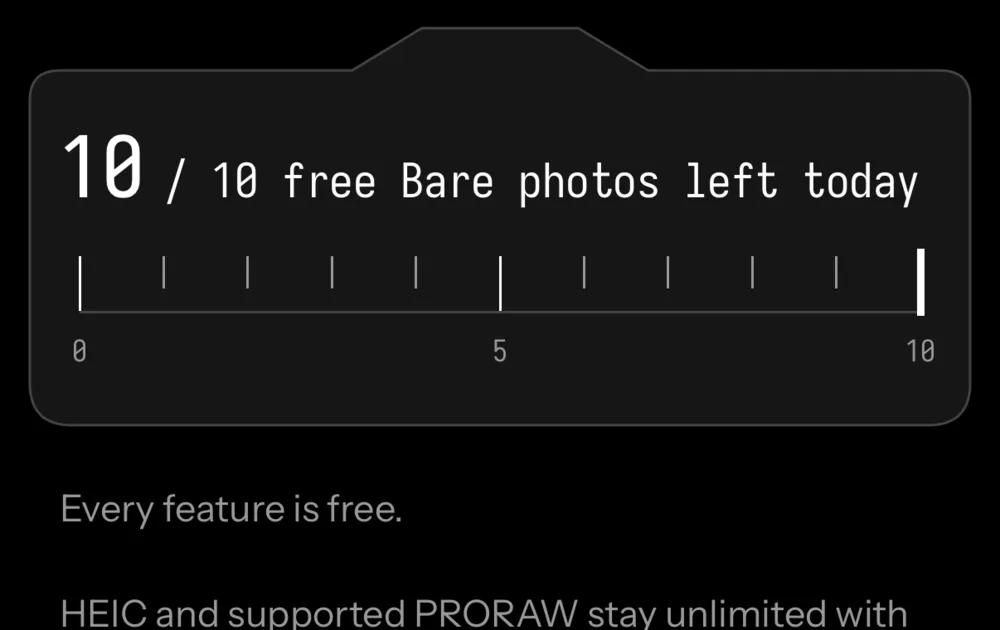
Every feature will be free, with 10 Bare photos a day that reset at local midnight. HEIC and supported PRORAW will stay unlimited.
What this page does not claim
- That a single RAW frame looks better than Apple's processed photo. It is a different trade-off, not a better photo in every scene.
- A Photos menu path for turning off HDR display. We did not find one documented in Apple's iPhone User Guide as of October 2026.
- That turning off Prioritize Faster Shooting, Photographic Styles, Scene Detection or Lens Correction stops frame merging. Apple does not say so.
- How Smart HDR, Deep Fusion or Photonic Engine work beyond what Apple has published.
- That Seenlight Bare Frame applies no sharpening or noise reduction. Its default development includes some detail and color noise reduction.
- That Seenlight is available now. It is coming soon to the App Store, and this page contains no measured image-quality comparison.
Questions
Can I turn off HDR on newer iPhones?
Apple's iPhone User Guide documents the Smart HDR switch only for iPhone 11 models, iPhone SE (2nd generation) and iPhone 12, and the iOS 18 edition also lists iPhone XS and iPhone XR. On other models, Apple says iPhone uses HDR automatically when it's most effective and documents no switch to turn it off.
Does shooting in Apple ProRAW turn off HDR?
No. Apple says ProRAW combines the information of a standard RAW format with iPhone image processing and can be captured with Smart HDR, Deep Fusion or Night mode. To avoid multi-frame merging, you need a standard Bayer RAW capture from a third-party camera app.
Does turning off Prioritize Faster Shooting turn off processing?
Apple says the setting modifies how images are processed so you can take more photos when you tap the Shutter button rapidly. Apple does not say that changing it disables HDR, Deep Fusion or Photonic Engine.
Is HDR display the same as HDR capture?
No. HDR capture blends several exposures when you take the photo. HDR display uses a gain map stored with the photo to show brighter highlights on an HDR screen when you view it.
Sources
- Adjust HDR camera settings on iPhone (iPhone User Guide, iOS 27), accessed 2026-10-26
- Adjust HDR camera settings on iPhone (iPhone User Guide, iOS 18), accessed 2026-10-26
- Change advanced camera settings on iPhone, accessed 2026-10-26
- Use Photographic Styles with Camera on iPhone, accessed 2026-10-26
- Take Night mode photos with your iPhone camera, accessed 2026-10-26
- Take Apple ProRAW photos with your iPhone camera, accessed 2026-10-26
- About Apple ProRAW, accessed 2026-10-26
- Apple introduces dual-camera iPhone 11 (Apple Newsroom, 2019), accessed 2026-10-26
- Apple introduces iPhone 14 and iPhone 14 Plus (Apple Newsroom, 2022), accessed 2026-10-26
- Capturing photos in RAW and Apple ProRAW formats (Apple Developer Documentation), accessed 2026-10-26
- Capture and process ProRAW images (WWDC21), accessed 2026-10-26
- Support HDR images in your app (WWDC23), accessed 2026-10-26
- Applying Apple HDR effect to your photos (Apple Developer Documentation), accessed 2026-10-26
- localToneMapAmount, CIRAWFilter (Apple Developer Documentation), accessed 2026-10-26
- Camera and Photo Technologies Group Lab (WWDC26), accessed 2026-10-26