How to shoot RAW in Apple's Camera app
The RAW option in Apple's Camera app is Apple ProRAW, and it appears only on supported Pro models. These steps follow Apple's iPhone User Guide for iOS 27:
- Open Settings, tap Camera, then tap Formats. Turn on Apple ProRAW or ProRAW & Resolution Control, depending on your model.
- Open Camera, tap the Camera Controls button, then tap Format. You can also add the Format control to the camera tools above the camera frame and tap it there.
- Select a RAW option, then tap anywhere outside the menu to close it.
- Take the photo with the Shutter button, either volume button or the Camera Control.
To preserve your ProRAW choice, go to Settings > Camera > Preserve Settings and turn on Apple ProRAW or ProRAW & Resolution Control. When RAW is off, Camera saves in the format set under Camera Capture in Settings > Camera > Formats: High Efficiency (HEIF) or Most Compatible (JPEG). The ProRAW Format setting on the same screen lets you choose the ProRAW file format.
Apple's "About Apple ProRAW" article, last published in April 2024, describes the earlier layout: a RAW button in Camera, and on iPhone 14 Pro and later Pro models with iOS 17, a resolution menu with HEIF Max, RAW 12 and RAW Max. RAW Max gives up to 48 MP and RAW 12 up to 12 MP.
ProRAW works with all cameras, including the front camera. You can't use it with Live Photos, in Portrait mode or when shooting video.
Which iPhone models can shoot RAW
Apple's iPhone User Guide for iOS 27 lists these models for Apple ProRAW:
| Model | ProRAW in Camera | ProRAW resolution |
|---|---|---|
| iPhone 12 Pro, iPhone 12 Pro Max, iPhone 13 Pro, iPhone 13 Pro Max | Yes | Apple documents the 12 MP or 48 MP choice only for iPhone 14 Pro and later Pro models |
| iPhone 14 Pro, iPhone 14 Pro Max, iPhone 15 Pro, iPhone 15 Pro Max, iPhone 16 Pro, iPhone 16 Pro Max, iPhone 17 Pro, iPhone 17 Pro Max, iPhone 18 Pro, iPhone 18 Pro Max | Yes | 12 MP or 48 MP |
| Every other iPhone, including the non-Pro models | No, not on Apple's ProRAW list | Not applicable |
Apple says only photos taken with the main camera at 1x can be saved at 48 MP. Ultra Wide, Telephoto, Night mode, flash and macro photos are saved at 12 MP. Apple's ProRAW article gives the path for choosing the resolution: Settings > Camera > Formats, then ProRAW & Resolution Control, where you select 12 MP or 48 MP.
A phone that isn't on the list may still save Bayer RAW in another camera app. Apple's developer documentation says not all devices support RAW capture; an app finds out by checking the RAW formats the system reports for the current device. Apple does not publish a per-model list of Bayer RAW support, so check what an app says about your model before you rely on it.
What is Apple ProRAW
Apple describes ProRAW as combining the information of a standard RAW format with iPhone image processing, which gives you more flexibility when editing exposure, color and white balance. Its developer documentation is more specific: compared with Bayer RAW, the system demosaics and partially processes ProRAW photos, which remain scene-referred. ProRAW applies many of the multi-image fusion techniques that were previously unavailable to RAW workflows, and Apple says you can capture ProRAW while using Smart HDR, Deep Fusion or Night mode. For what those features do and which ones you can switch off, see how to turn off HDR on iPhone.
ProRAW uses DNG, the industry standard digital negative format. In practice you get more editing room than HEIF or JPEG, with part of Apple's processing already applied.
The files are large. Apple's figures are about 25 MB for a 12 MP ProRAW photo and about 75 MB at 48 MP, and ProRAW files are 10 to 12 times larger than HEIF or JPEG files. If you use iCloud Photos, Apple notes you might need a larger iCloud storage plan.
ProRAW vs RAW: how Bayer RAW differs
On iPhone, RAW can mean two different formats. Both arrive as DNG files, but they hold different data.
| Bayer RAW | Apple ProRAW | |
|---|---|---|
| What the file holds | Minimally processed data from the camera sensor, before demosaicing | Demosaiced and partially processed image data that stays scene-referred |
| Apple's multi-frame processing | Bypassed. Bayer RAW isn't available in modes that fuse multiple captures | Applies many multi-image fusion techniques; works with Smart HDR, Deep Fusion and Night mode |
| Where you can shoot it | Camera apps that request it through Apple's camera API, on devices that report a Bayer RAW format | Apple's Camera app on supported Pro models, and camera apps where the device supports ProRAW |
| File size | Apple publishes no figure; it says RAW formats produce much larger files than compressed formats | About 25 MB at 12 MP and 75 MB at 48 MP, per Apple. Lossless by default; apps can request lossy compression for smaller files |
| Opening on iPhone | iOS includes basic support for DNG files from other cameras | Compatible with the Photos app on iOS 14.3 or later |
Which to choose depends on what you want from the file. ProRAW keeps the convenience of the Camera app and Apple's processing, with more editing room than HEIF or JPEG. Bayer RAW gives you a file without multi-frame fusion that you develop yourself; Apple's own documentation names the trade-off, saying standard RAW bypasses the advanced processing the capture pipeline provides.
How other camera apps capture Bayer RAW
Apple's camera framework, AVFoundation, lets camera apps request RAW photos. The app asks the photo output which RAW formats the device offers, picks a Bayer RAW or ProRAW format from that list and receives the photo as DNG data. It can also request a processed HEIF or JPEG at the same time. Apple's sample code saves the DNG as the main photo in your library and the processed image as an alternate version of the same photo.
Before you pick an app for RAW, check:
- Which RAW format it saves: Bayer RAW, ProRAW or both.
- Whether it also saves a processed copy you can share right away.
- Which of your iPhone's cameras it can capture RAW from.
- Whether it gives you manual exposure and focus. RAW leaves room to adjust exposure and color later, but it can't recover a photo that is out of focus. See manual focus on iPhone.
Open and edit a RAW file on iPhone
ProRAW photos open in the Photos app on iOS 14.3 or later. Apple's list of supported RAW formats for iOS 27 also includes basic support for DNG files captured by other cameras. To edit a RAW photo in Photos:
- Open the Photos app and tap the photo.
- Tap the Edit button, then tap Adjust.
- Swipe left under the photo to find a setting such as Exposure, Brilliance or Highlights, then drag its slider.
- Tap Done to save, or tap Cancel, then Discard Changes.
Edits don't overwrite the original. To go back, open the photo, tap the More button, then tap Revert to Original.
Sharing works differently for ProRAW. Apple says an edited ProRAW photo is shared as a JPG, and Mail converts ProRAW to a smaller JPG. To share the original DNG from Photos on iPhone, tap Share, tap Duplicate, tap Edit, tap Revert, then share the photo with AirDrop. When you AirDrop to a Mac, tap Options and turn on All Photos Data to send both the original and the edit.
Other editing apps that read DNG can open ProRAW files. Apple warns that an app that doesn't support ProRAW might show the photo differently than expected, and suggests trying that app's automatic enhance feature.
Seenlight Bare Frame, coming soon
Seenlight is a manual RAW camera app for iPhone, coming soon to the App Store. It will need iOS 18.0 or later. Its Seenlight Bare Frame mode will capture one Bayer RAW frame without Smart HDR, Deep Fusion or frame merging and develop it neutrally, for natural-looking photos. Development will still include demosaicing, white balance, lens correction where supported, a global tone curve and default detail and color noise reduction, and you will be able to choose a look.
Bare Frame will keep the DNG original alongside the finished photo. When Photos accepts the finished photo's format as an edit, Seenlight will save it as an edit of the DNG, so Revert to Original in Photos takes you back to the DNG. Formats Photos doesn't accept as an edit will be saved next to the DNG instead. Bare Frame will need a camera that offers Bayer RAW, so it won't capture from every lens.
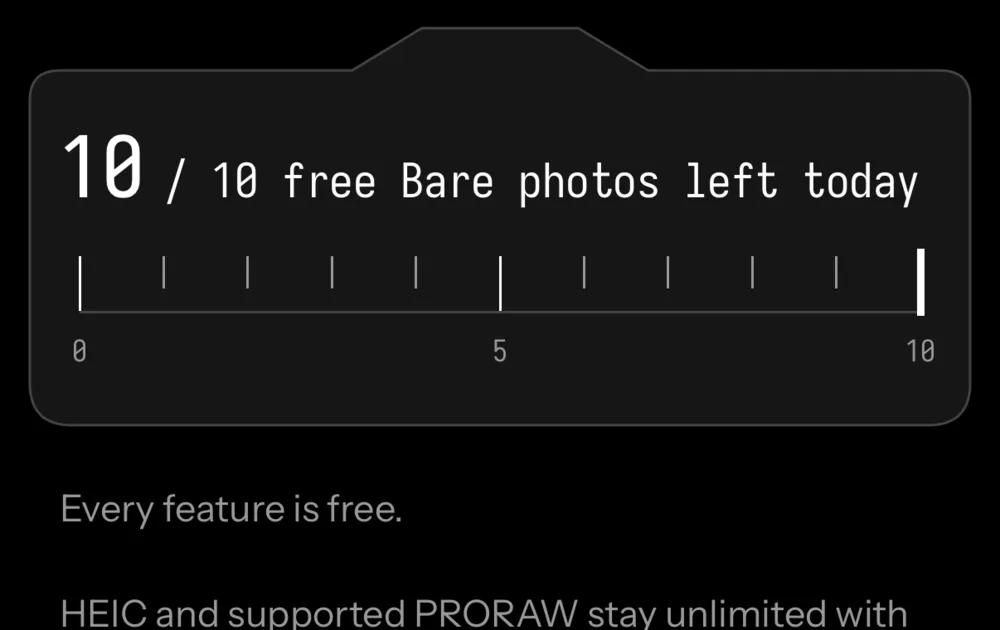
Every feature will be free. You'll be able to take 10 Bare photos a day, and the allowance will reset at local midnight. HEIC and supported PRORAW will stay unlimited with Apple's processing. Pro will remove only the daily Bare limit.
What this page does not claim
- That Bayer RAW photos look better than ProRAW, HEIF or JPEG in every scene.
- Which iPhone models or cameras support Bayer RAW in other camera apps. Apple does not publish that list.
- A file size for Bayer RAW. Apple publishes sizes only for ProRAW, and the ProRAW figures here are Apple's, not our measurements.
- That the Camera app menus look the same on every iOS version. The steps follow Apple's iPhone User Guide for iOS 27.
- That Seenlight is available today. It is coming soon to the App Store.
- That Bare Frame applies no sharpening or noise reduction, or that RAW development does nothing. Zero processing describes Bare capture only; PRORAW and HEIC use Apple's processing.
Questions
Can every iPhone shoot RAW?
No. Apple's Camera app offers RAW, as Apple ProRAW, only on iPhone 12 Pro and later Pro models listed in Apple's iPhone User Guide. Other camera apps can capture Bayer RAW only on devices where the system reports a RAW format. Apple says not all devices support RAW capture and does not publish a per-model list.
Is ProRAW the same as RAW?
Both are saved as DNG files, but they hold different data. Apple ProRAW is demosaiced and partially processed, with many of Apple's multi-image fusion techniques applied. Bayer RAW is minimally processed sensor data that bypasses that processing.
How big is an iPhone RAW file?
Apple says a ProRAW photo is about 25 MB at 12 MP and about 75 MB at 48 MP, 10 to 12 times larger than a HEIF or JPEG file. Apple gives no figure for Bayer RAW; it says RAW formats produce much larger files than compressed formats.
Can I edit RAW photos in the Photos app on iPhone?
Yes. Apple says Photos on iOS 14.3 or later is compatible with ProRAW, and iOS includes basic support for DNG files from other cameras. Open the photo, tap the Edit button, then tap Adjust. To undo saved edits, tap the More button, then Revert to Original.
Sources
- About Apple ProRAW, accessed 2026-10-26
- Take Apple ProRAW photos with your iPhone camera, accessed 2026-10-26
- Models that support Apple ProRAW (iPhone User Guide, iOS 27), accessed 2026-10-26
- Change advanced camera settings on iPhone, accessed 2026-10-26
- Capturing photos in RAW and Apple ProRAW formats, accessed 2026-10-26
- AVCapturePhotoOutput isAppleProRAWEnabled, accessed 2026-10-26
- AVCapturePhotoOutput availableRawPhotoPixelFormatTypes, accessed 2026-10-26
- Digital camera RAW formats supported by version 27 of iOS, iPadOS, macOS, visionOS, accessed 2026-10-26
- Edit photos and videos on iPhone, accessed 2026-10-26
- Undo and revert photo edits on iPhone, accessed 2026-10-26